
Telegram Group Links: How to Create, Share, and Manage Invite Links
Everything you need to know about Telegram group links. Learn how to create invite links, share them safely, manage permissions, and track who joins your group.
Every Telegram group needs a way for people to find or join it. A Telegram group link opens the group in Telegram, where the person may join or request approval depending on the group's settings. Whether you run a small hobby group or a larger community, understanding how invite links work helps you manage access.
This guide covers everything: creating links, choosing between public and private formats, sharing them without getting spammed, and managing permissions so you stay in control.
Live directory
Browse Metricgram's curated Telegram directory to find active communities by category and language, and see how leading groups position their listings.
Open directoryWhat Is a Telegram Group Link?
A Telegram group link is a URL that, when clicked, opens Telegram and presents the user with an option to join your group. There are two formats:
-
Public link:
t.me/YourGroupName-- tied to the group's current public username. -
Private invite link:
telegram.me/+AbCdEfGhIjK-- a randomly generated hash that can be revoked and regenerated at any time.
Both serve the same purpose, but they behave differently when it comes to discoverability, control, and security. We will break down those differences below.
How to Create a Telegram Group Invite Link
The process is straightforward on both mobile and desktop. You need to be a group admin with the "Invite Users via Link" permission.
On Mobile (iOS and Android)
- Open your Telegram group.
- Tap the group name at the top to open the group info screen.
- Scroll down and tap "Invite via Link" (or "Invite Link" on some versions).
- You will see the current invite link. Tap "Copy Link" to copy it, or tap "Share Link" to send it directly through another app.
- To create an additional link with custom settings, tap "Create a New Link".
On Desktop (Telegram Desktop or Telegram Web)
- Open the group chat.
- Click the group name in the top bar to open group info.
- Click "Invite Links" in the right-side panel.
- Copy the existing link or click "Create a New Invite Link" to generate one with specific parameters.
That is it. You now have a Telegram group invite link ready to share.
Ready to improve your Telegram group? Start your 14-day Metricgram trial.
Start free trialPublic vs Private Group Links
This is where most admins make their first decision, and it matters more than you might think.
Public Links (t.me/YourGroupName)
When you set a public username for your group, Telegram gives it a human-readable link such as t.me/YourGroupName. The link works while that username remains assigned to the group. Admins can change or remove the username, and Telegram search does not guarantee where a group will appear.
Advantages:
- Easy to remember and share.
- People can search for the group's public username, though Telegram does not promise a particular result or ranking.
- The link is easy to remember while the username stays assigned.
Disadvantages:
- A public group can be opened without a private invite link; it may still require admin approval to join.
- To stop using the public link, change or remove the username. The old link will stop pointing to this group, and the released username may become available to someone else.
- More exposure to spam bots and unwanted members.
Private Invite Links (t.me/+hash)
Private groups use randomly generated invite links. These are not public usernames, and a person generally needs a valid link from an admin or member who can invite them. An invite can expire, have a usage limit, or require admin approval.
Advantages:
- More control over how access is shared; use approval settings when you need to review join requests.
- You can revoke a link to stop new join requests through that URL. Revoking it does not remove people who already joined the group.
- You can create multiple links with different expiration dates or member limits.
Disadvantages:
- Not discoverable through Telegram search.
- If the link leaks, you need to revoke and regenerate it.
Choose based on discovery and distribution. A public username is easier to find and share, though admins can still require approval before someone joins. Private invite links let you control where a link is distributed, but they can still be forwarded; use expiration, member limits, or approval when those controls fit your group.
How to Share Your Telegram Group Link Safely
Getting the word out about your group is the goal, but how you share your Telegram group link matters just as much as where you share it.
Good Places to Share
- Your website or blog. Embed the link on a dedicated community page or in your site footer.
- Social media profiles. Add it to your bio on X, Instagram, LinkedIn, or wherever your audience hangs out.
- Email newsletters. Include a direct join link in your regular communications.
- Other Telegram groups or channels. Only where allowed by the group rules -- cross-posting in unrelated groups will get you banned.
- QR codes. Generate a QR code from your invite link for events, printed materials, or presentations.
Things to Avoid
- Do not post your link on public forums without context. A naked link with no explanation looks like spam and attracts the wrong crowd.
- Avoid sharing private invite links in places you cannot control. Once a private link is out in the wild, anyone who finds it can join.
- Keep private links for restricted groups or campaigns out of public posts. Share a public username or an invite link you intentionally made for public distribution when you want anyone to request or join. A link's label helps you compare attributed joins; it does not identify every person who shared it.
If you are running a community and want to understand where your members are coming from, consider using a group management tool that tracks join sources and member activity.
Managing Invite Links: Revoke, Expire, and Limit
Telegram gives admins solid control over invite links. Here is what you can do.
Revoking a Link
If an invite link has been compromised or you simply want to stop new joins from a specific URL, you can revoke it. Go to the invite links section in your group settings, find the link, and tap "Revoke." The link immediately stops working. Anyone who clicks it after that will see an error.
Setting an Expiration Date
When creating a new invite link, you can set it to expire after a certain period -- one hour, one day, one week, or a custom date. This is useful for time-limited promotions, events, or campaigns where you want the link to stop working automatically.
Setting a Member Limit
You can also cap how many people can join through a specific link. Once the limit is reached, the link stops working. This is perfect for:
- Limited-access events or webinars.
- Beta testing groups where you want a controlled rollout.
- Tiered access where different links go to different audiences.
Creating Multiple Links
Telegram lets admins create multiple invite links for a group. Use separate links for different channels -- one for your website, one for X, and one for email campaigns -- when the client allows it. You can compare joins attributed to each link, but that will not reveal every view or prove which person shared a link. Public-group joins may be attributed to the public username instead.
For deeper insights into where your members come from and how they engage, Metricgram's dashboard gives you a clear picture of your group's growth over time.
Separate links show a source, not always a person
An admin can create a separate invite link for a moderator, campaign, or event and share it with that person. Telegram can show which link was used, but a link can be forwarded, so it does not prove who personally invited each new member. If you need to compare marketing sources, give each placement its own labeled link and avoid treating a missing attribution as zero interest.
This is valuable for several reasons:
- Accountability. You can see which admins are actively growing the community.
- Tracking campaigns. If different admins are responsible for different outreach channels, their personal links act as tracking URLs.
- Moderation. If a wave of spam accounts joins through a specific admin's link, you know where to look.
To view admin invite link statistics, go to your group settings, tap "Invite Links," and select the admin whose link activity you want to review. You will see the total number of joins, along with the list of members who joined through that link.
For communities that need more granular member tracking and management, Metricgram's member management features let you go beyond what Telegram's built-in tools offer.
Common Mistakes With Telegram Group Links
Even experienced admins make these errors. Avoid them and you will save yourself headaches.
1. Using one link for everything. Create separate links for separate channels. If your only link gets shared somewhere you did not intend, you have no way to cut off that specific source without affecting everyone else.
2. Forgetting to revoke old links. If you shared a link six months ago on a forum post, it is probably still active. Audit your invite links regularly and revoke the ones you no longer need.
3. Not setting expiration dates for campaign links. Temporary promotions should use temporary links. Otherwise, people will keep joining long after the campaign is over, and you will have no idea where they came from.
4. Sharing the link without context. A bare URL with no description of what the group is about attracts low-quality members. Always include a brief explanation of who the group is for and what they will get out of joining.
5. Ignoring link analytics. Telegram shows you how many people joined through each link. If you are not checking this, you are flying blind. Use these numbers to double down on what works.
Best Practices for Telegram Group Link Sharing
Here is a checklist to follow every time you create and distribute a new Telegram group link:
- Create a unique link for each distribution channel so you can track performance.
- Set expiration dates on campaign-specific links to avoid stale entry points.
- Use member limits when you want controlled access.
- Write a clear description next to every link you share -- who is the group for and what value does it provide.
- Audit your active links monthly. Revoke anything you no longer need.
- Use a private link for exclusive communities and a public username for open groups.
- Combine link management with a broader group management strategy to keep your community healthy as it grows.
If you are growing multiple groups or managing a large community, manual link tracking becomes tedious fast. Tools like Metricgram help you search and understand your Telegram groups at a level that goes well beyond what Telegram natively offers.
Start Managing Your Telegram Group Smarter
Telegram group links are simple on the surface but powerful when used correctly. The difference between a well-managed community and a chaotic one often comes down to how you handle your invite links -- creating them with intention, sharing them strategically, and revoking them when they have served their purpose.
Metricgram gives you analytics, member tracking, and automation tools for managing Telegram communities with more control over growth and invite sources.
Explore More Communities in the Directory
If you want a faster way to compare active Telegram groups by category, language, and positioning, browse the Metricgram directory. It helps you move beyond outdated invite-link lists and quickly shortlist communities that still look active and relevant.
If you run your own group, use the directory as research too: review how other communities describe their niche, frame the value of joining, and present themselves before you publish or promote your own listing.
Ready to manage your Telegram group with Metricgram?
Automate tasks, track analytics, and grow your community with a 14-day free trial. No credit card required.
Start free trialGet weekly Telegram community tips
Join community managers who receive our best tips, guides, and product updates.
You may also like
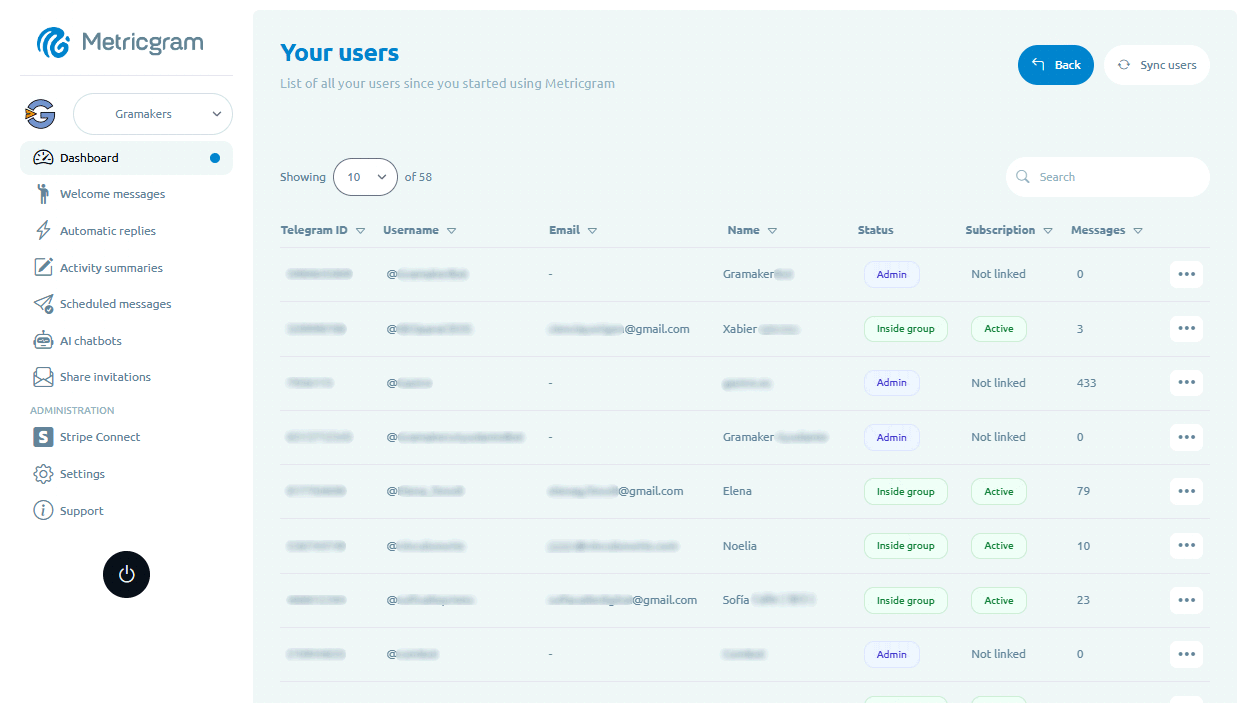
Telegram Subscription Bot: How To Sell Access Without Manual Admin Work
Learn what a Telegram subscription bot should do, how payments and invite links fit together, and how to evaluate automation for a paid Telegram group or channel.
Telegram For Educators: How To Run Cohorts, Student Communities, And Office Hours Without Replacing Your LMS
Telegram is a strong fit for educators when it is used as the live layer around a course or training business. This guide explains how to use it for cohorts, student communities, office hours, and support without turning it into a substitute for your LMS.